
Answer United – How to Set Up Call Forwarding
What is Call Forwarding?
 Call Forwarding is a telephony feature provided by your phone carrier or business phone system provider. It is the essential function that allows your incoming calls to be seamlessly redirected to Answer United’s professional answering service. You are responsible for activating this feature on your line(s).
Forwarding a Single Phone Number
Most customers should first contact their local phone service provider to confirm that the Call Forwarding feature is active on your account. Then request the specific dialing instructions or settings required for your carrier. You can also use one of the standard methods below.
Standard Star Code Method (Landlines, VoIP & Some Mobile Carriers)
- Lift your handset and dial `*72` (some services may use `*92`).
- Dial the 10-digit phone number provided to you by Answer United.
- Listen for a confirmation tone or message. This indicates call forwarding is now active.
- You will typically hear a short half-ring on future incoming calls, confirming the call is being forwarded.
- Confirm it is forwarding by placing a test call and confirm that we are answering.
For iPhone Users


- Open the Settings app.
- Scroll down and tap Phone.
- Select Call Forwarding.
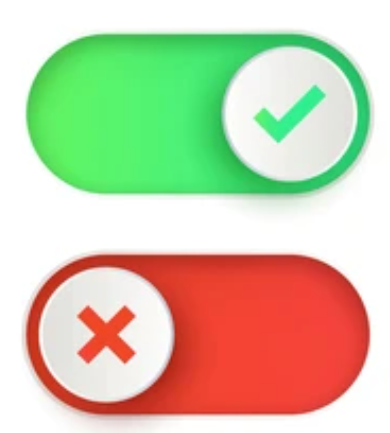
- Toggle the switch to On (green).
- Tap Forward To and enter the Answer United number provided to you.
- Calls will immediately forward, confirm via a test call. A small phone icon with a forwarding arrow will appear in your status bar.
For Android Users (The menu path can vary slightly by manufacturer and carrier)

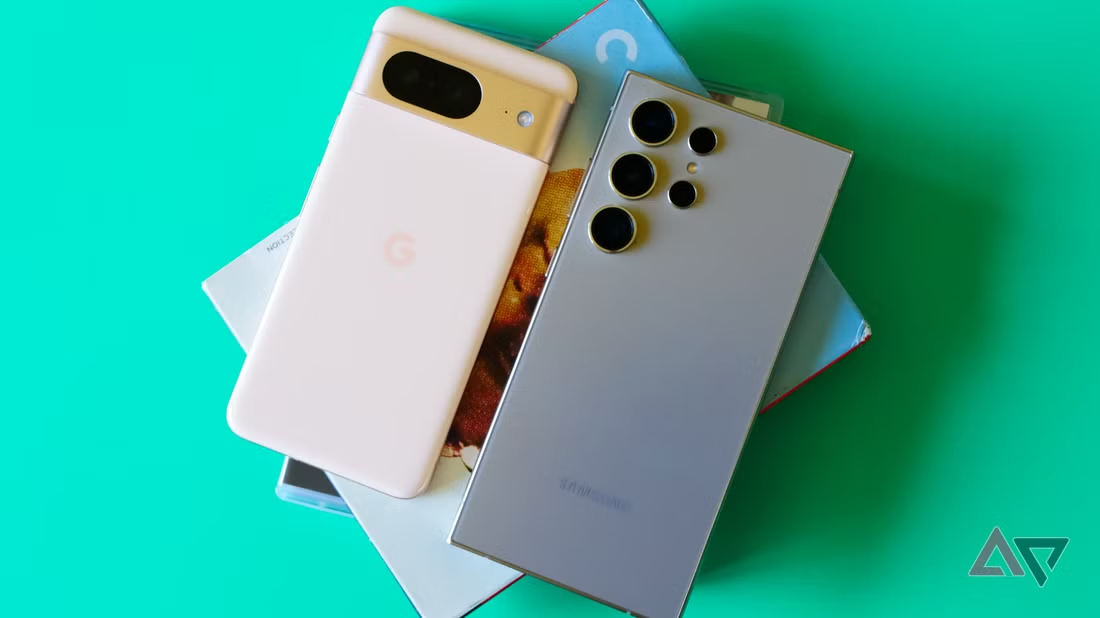
- Open the Phone app.
- Tap the More icon (⋮ or ⁝) in the top corner.
- Go to Settings > Call Settings or Calling Accounts.
- Select your carrier and tap Call Forwarding.
- Choose a condition (e.g., Always forward) and enter the Answer United number.
- Save the settings to activate and confirm with a test call.
Deactivating Call Forwarding
 Star Code: Dial `*73` from the phone you forwarded.
iPhone: Return to Settings > Phone > Call Forwarding and toggle the switch to Off.
Android: Navigate back to the Call Forwarding menu and select Disable or Turn off.
Always confirm call forwarding is off with a test call.
Forwarding for Multi-Line Business Systems (Physical or Cloud-Based)
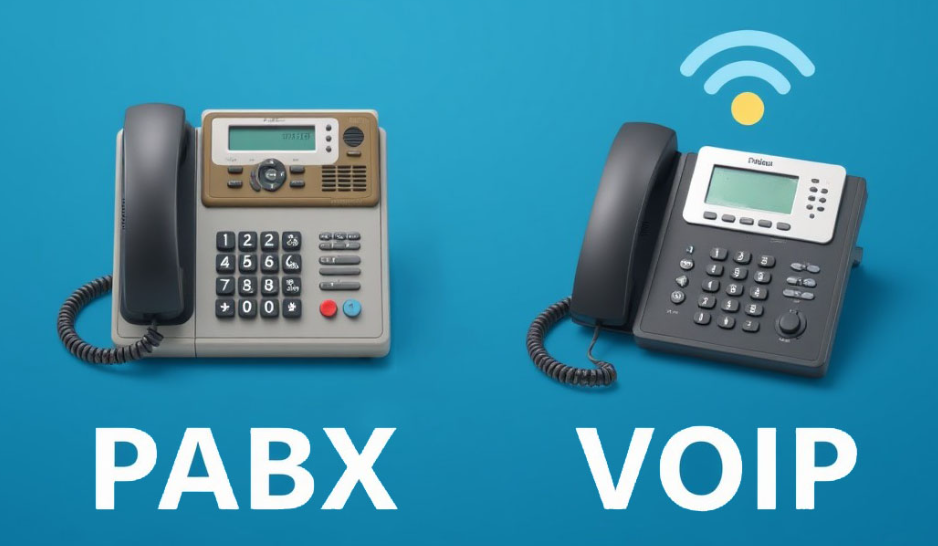
- Individual Line Forwarding: Use the Star Code method (`*72`) on your main published line to forward all calls.
- Scheduled Forwarding: Your system can be programmed to automatically forward all calls to Answer United based on a schedule (e.g., after 5 PM daily, on weekends).
Contact your phone system provider or administrator to configure this.
Setting Up Automatic Call Overflow


- Automatic Overflow is a “smart” forwarding feature that sends calls to Answer United only when you are unavailable. It is the professional equivalent of your voicemail service.
- How it Works: Calls will ring on your line first. They are only forwarded to us if your line is busy or after a set number of rings (typically 3-4).
- Setup: This is a permanent setting that must be configured on your phone system by your service provider or system administrator. You cannot typically set this yourself.
Important Note: You must provide your provider with the dedicated phone number given to you by Answer United. Automatic Overflow replaces your voicemail; the two features cannot be active on the same line simultaneously.
Need Help?
While Answer United provides these general guidelines, your phone carrier or system technician is the best resource for specific configuration support. Have your Answer United-provided forwarding number ready when you call them.
For further assistance with your Answer United service, please contact our support team.